
After a Windows 11 update, my QTTabBar-enhanced File Explorer started crashing. Once relaunched, I couldn’t move the QTTabBar tabs or command bar to the top anymore.
In QTTabBar’s options, only these showed up: “Extra View (Left)”, “QT Command Bar (Vertical)”, “Extra View (Bottom)”, and “QTTabBar – Bottom”:
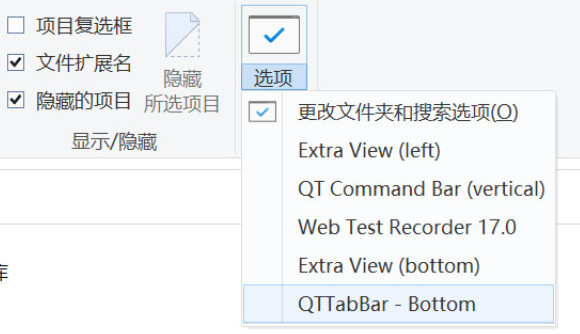
not as usual:
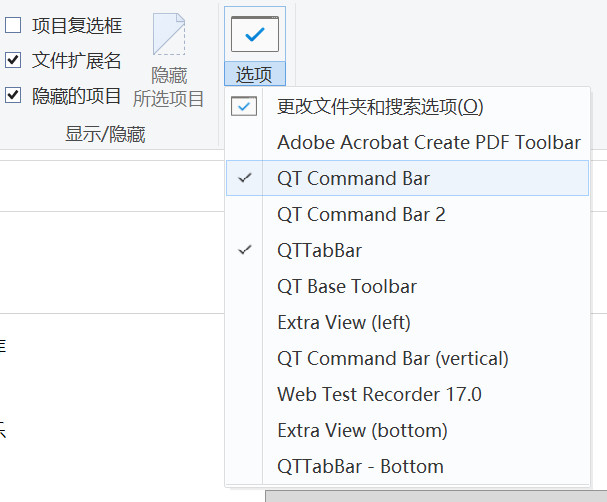
Tried the online advice: Control Panel > Internet Options > Programs tab > Manage add-ons > Enable all QTTabBar-related plugins (like QT Command Bar 2, QT Base Toolbar, Extra View (left)). Restarted the OS. Still nothing.
This seems tied to the Windows 11 update, likely enabling feature ID 57048216, which breaks third-party toolbars like QTTabBar from displaying or pinning to the top. Disabling it restores compatibility. Here’s how:
- Grab the latest ViVeTool from GitHub: https://github.com/thebookisclosed/ViVe/releases — download the ZIP (e.g., ViVeTool-v0.x.x.zip).
- Extract to a folder, say
C:\ViVeTool. - Open Command Prompt as admin (Win + S, search “cmd”, right-click > Run as administrator).
- CD into the folder:
cd C:\ViVeTool(adjust your path). - Run:
vivetool /disable /id:57048216
If you’ve previously disabled native tabs, repeat for these IDs to be sure: 39145991, 36354489, 37634385. E.g.,vivetool /disable /id:39145991 - Reboot.
- Open File Explorer, go to View > Options, and check if the QTTabBar option appears. If so, enable it.
Worked like a charm — tabs back on top!
If it doesn’t fix things, roll back by swapping /disable with /enable and re-running.